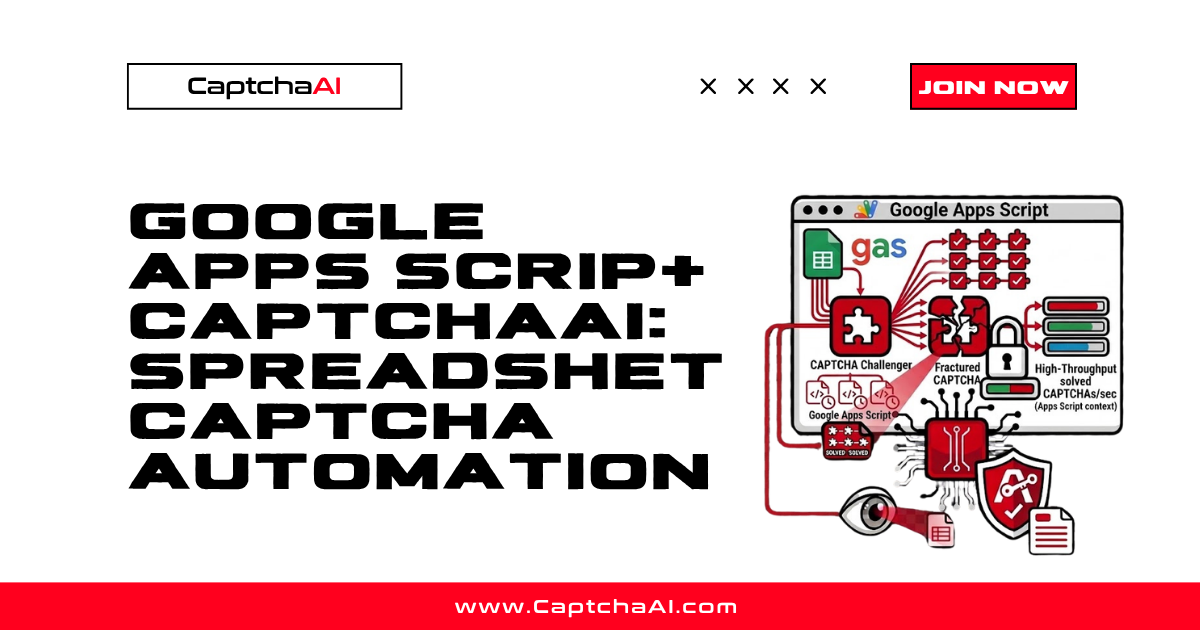
Google Apps Script lets you automate tasks inside Google Sheets, Docs, and other Workspace products. When your spreadsheet workflow involves CAPTCHA images — OCR challenges from data sources, verification images, or text-based CAPTCHAs — CaptchaAI can solve them directly from Apps Script using UrlFetchApp.
This guide shows how to build a custom function in Google Sheets that sends CAPTCHA images to CaptchaAI and returns the solved text.
Real-World Scenario
You have a Google Sheet with URLs pointing to CAPTCHA images that need to be solved. Instead of solving them manually, you write an Apps Script function that:
- Fetches each CAPTCHA image from the URL
- Converts it to base64
- Submits it to CaptchaAI
- Returns the solved text to the spreadsheet cell
Step 1: Set Up the Apps Script Project
In your Google Sheet:
- Go to Extensions → Apps Script
- Create a new script file called
captchaai.gs
Step 2: Write the CaptchaAI Solver
// captchaai.gs

// Store your API key in Script Properties for security
// File → Project Properties → Script Properties → Add: CAPTCHAAI_KEY
function getApiKey() {
  return PropertiesService.getScriptProperties().getProperty('CAPTCHAAI_KEY');
}

/**

 * Solve an image CAPTCHA from a URL.
 * @param {string} imageUrl URL of the CAPTCHA image to solve.
 * @return {string} The solved CAPTCHA text.
 * @customfunction
 */
function SOLVE_CAPTCHA(imageUrl) {
  if (!imageUrl) return 'No URL provided';

  try {
    // Fetch the image and convert to base64
    var imageResponse = UrlFetchApp.fetch(imageUrl);
    var imageBlob = imageResponse.getBlob();
    var base64Image = Utilities.base64Encode(imageBlob.getBytes());

    // Submit to CaptchaAI
    var taskId = submitCaptcha(base64Image);
    if (!taskId) return 'Submit failed';

    // Poll for result
    var result = pollForResult(taskId);
    return result || 'Solve failed';
  } catch (e) {
    return 'Error: ' + e.message;
  }
}

/**

 * Solve an image CAPTCHA from base64 text in a cell.
 * @param {string} base64Image Base64-encoded CAPTCHA image.
 * @return {string} The solved CAPTCHA text.
 * @customfunction
 */
function SOLVE_CAPTCHA_BASE64(base64Image) {
  if (!base64Image) return 'No image data';

  try {
    var taskId = submitCaptcha(base64Image);
    if (!taskId) return 'Submit failed';

    var result = pollForResult(taskId);
    return result || 'Solve failed';
  } catch (e) {
    return 'Error: ' + e.message;
  }
}

function submitCaptcha(base64Image) {
  var apiKey = getApiKey();

  var payload = {
    'key': apiKey,
    'method': 'base64',
    'body': base64Image,
    'json': '1'
  };

  var options = {
    'method': 'post',
    'payload': payload,
    'muteHttpExceptions': true
  };

  var response = UrlFetchApp.fetch(
    'https://ocr.captchaai.com/in.php', options
  );
  var result = JSON.parse(response.getContentText());

  if (result.status === 1) {
    return result.request;
  }

  Logger.log('Submit error: ' + result.request);
  return null;
}

function pollForResult(taskId) {
  var apiKey = getApiKey();
  var maxAttempts = 20;

  // Initial wait
  Utilities.sleep(5000);

  for (var i = 0; i < maxAttempts; i++) {
    var url = 'https://ocr.captchaai.com/res.php'
      + '?key=' + apiKey
      + '&action=get'
      + '&id=' + taskId
      + '&json=1';

    var response = UrlFetchApp.fetch(url, {muteHttpExceptions: true});
    var result = JSON.parse(response.getContentText());

    if (result.status === 1) {
      return result.request;
    }

    if (result.request !== 'CAPCHA_NOT_READY') {
      Logger.log('Solve error: ' + result.request);
      return null;
    }

    Utilities.sleep(5000);
  }

  return null; // Timeout
}
Step 3: Configure API Key Storage
Store your API key securely in Script Properties:
- In the Apps Script editor, click Project Settings (gear icon)
- Scroll to Script Properties
- Click Add script property
- Property:
CAPTCHAAI_KEY, Value: your CaptchaAI API key - Save
Step 4: Use in Google Sheets
As a Custom Function
In any cell, use the formula:
=SOLVE_CAPTCHA("https://example.com/captcha-image.jpg")
Or for base64 data already in a cell:
=SOLVE_CAPTCHA_BASE64(A2)
Batch Processing with a Menu
For processing multiple CAPTCHAs, add a custom menu that processes a column of image URLs:
function onOpen() {
  SpreadsheetApp.getUi().createMenu('CaptchaAI')
    .addItem('Solve Column A CAPTCHAs', 'solveColumnCaptchas')
    .addItem('Check Balance', 'checkBalance')
    .addToUi();
}

function solveColumnCaptchas() {
  var sheet = SpreadsheetApp.getActiveSheet();
  var lastRow = sheet.getLastRow();
  var urls = sheet.getRange('A2:A' + lastRow).getValues();

  for (var i = 0; i < urls.length; i++) {
    if (!urls[i][0]) continue;

    var row = i + 2;
    var existingResult = sheet.getRange('B' + row).getValue();
    if (existingResult) continue; // Skip already solved

    sheet.getRange('B' + row).setValue('Solving...');
    SpreadsheetApp.flush();

    var result = SOLVE_CAPTCHA(urls[i][0]);
    sheet.getRange('B' + row).setValue(result);
    sheet.getRange('C' + row).setValue(new Date()); // Timestamp

    // Avoid hitting Apps Script quotas
    Utilities.sleep(1000);
  }

  SpreadsheetApp.getUi().alert('Batch solving complete!');
}

function checkBalance() {
  var apiKey = getApiKey();
  var url = 'https://ocr.captchaai.com/res.php'
    + '?key=' + apiKey
    + '&action=getbalance'
    + '&json=1';

  var response = UrlFetchApp.fetch(url);
  var result = JSON.parse(response.getContentText());

  SpreadsheetApp.getUi().alert(
    'CaptchaAI Balance: $' + result.request
  );
}
Step 5: Spreadsheet Layout
| Column A (Image URL) | Column B (Result) | Column C (Solved At) |
|---|---|---|
| https://example.com/captcha1.jpg | ABC123 | 2026-04-04 10:15:00 |
| https://example.com/captcha2.jpg | XYZ789 | 2026-04-04 10:15:12 |
| https://example.com/captcha3.jpg | Solving... |
Troubleshooting
| Problem | Cause | Fix |
|---|---|---|
TypeError: Cannot read property 'getProperty' |
Script Properties not set | Add CAPTCHAAI_KEY in Project Settings |
Exception: Address unavailable |
Image URL is blocked or invalid | Verify the image URL is accessible from Google's servers |
Custom function returns Loading... forever |
Apps Script execution timeout (30 sec for custom functions) | Use the batch menu approach instead — menu functions have a 6-minute limit |
ERROR_ZERO_BALANCE |
Account has no credit | Top up your CaptchaAI balance |
UrlFetchApp quota exceeded |
Too many API calls | Add Utilities.sleep() between calls; process in smaller batches |
FAQ
What are the Apps Script execution limits?
Custom functions: 30 seconds. Menu-triggered functions: 6 minutes. Time-driven triggers: 6 minutes (or 30 minutes for Google Workspace). Plan batch sizes accordingly.
Can I solve reCAPTCHA v2 from Apps Script?
Yes, but you'll need to have the sitekey and page URL. Use method=userrecaptcha instead of method=base64 and pass googlekey and pageurl parameters.
How do I handle rate limits?
Add Utilities.sleep(1000) between solve requests. CaptchaAI doesn't have strict rate limits, but Apps Script's UrlFetchApp has daily quotas (20,000 calls for consumer, 100,000 for Workspace).
Can I schedule batch solving?
Yes. Use Apps Script's Triggers (Edit → Triggers) to run solveColumnCaptchas on a schedule (hourly, daily, etc.).
Next Steps
Automate CAPTCHA solving from your Google Sheets — get your CaptchaAI API key and add the script to your spreadsheet.
Related guides:
- Zapier + CaptchaAI: No-Code CAPTCHA Solving
- Batch Image CAPTCHA Solving: Processing 1,000 Images
- Make (Integromat) + CaptchaAI
Full Working Code
Complete runnable examples for this article in Python, Node.js, PHP, Go, Java, C#, Ruby, Rust, Kotlin & Bash.
View on GitHub →

Discussions (0)
Join the conversation
Sign in to share your opinion.
Sign InNo comments yet.