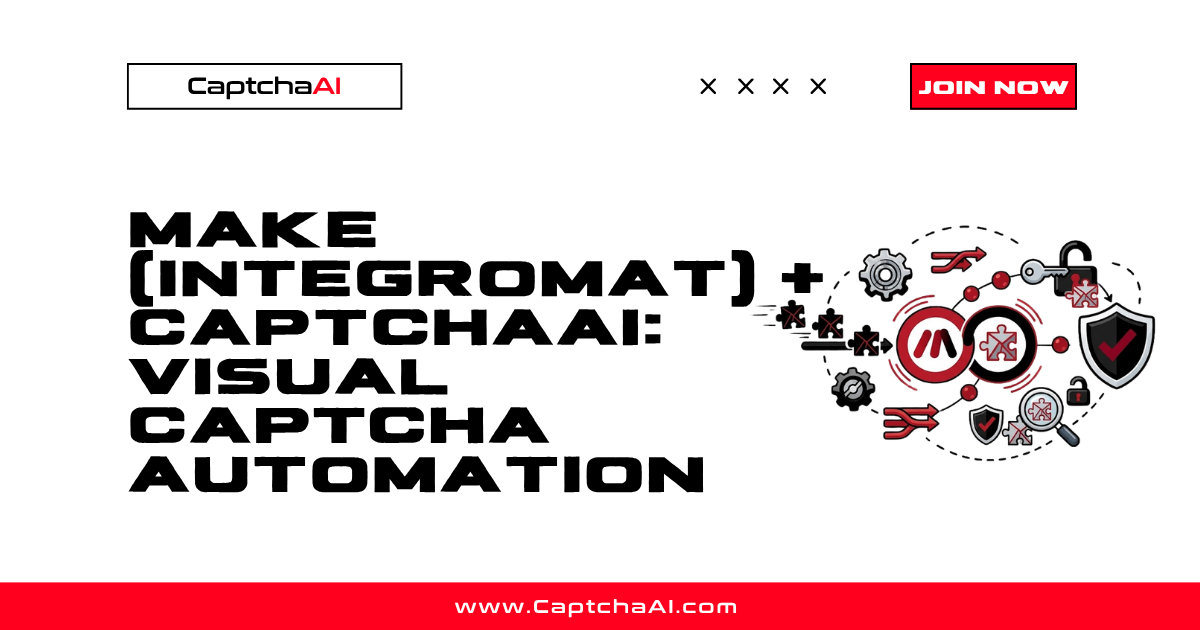
Make (formerly Integromat) is a visual automation platform that connects apps, APIs, and workflows without code. When your automated flows encounter CAPTCHAs — form submissions, data lookups, or web interactions — CaptchaAI can solve them through Make's HTTP module.
This guide walks through setting up a Make scenario that submits CAPTCHAs to CaptchaAI, polls for solutions, and uses the token in downstream actions.
Real-World Scenario
You have a Make scenario that:
- Receives a webhook trigger with a URL and reCAPTCHA sitekey
- Submits the CAPTCHA to CaptchaAI for solving
- Polls until the solution is ready
- Sends the solved token back via webhook or to the next module
This pattern works for form automation, data entry workflows, and any scenario where a CAPTCHA blocks the automated path.
Step 1: Create the Scenario
In Make, create a new scenario with these modules:
Module 1: Webhook Trigger (Custom Webhook)
Create a custom webhook that receives CAPTCHA solve requests:
Webhook data structure:
{
  "sitekey": "6Le-wvkSVVABCPBMRTvw0Q4Muexq1bi0DJwx_mJ-",
  "pageurl": "https://example.com/form",
  "captcha_type": "recaptcha_v2"
}
Set up the webhook in Make:
- Add a Webhooks > Custom webhook module
- Click Add to create a new webhook
- Copy the webhook URL
- Define the data structure with
sitekey,pageurl, andcaptcha_typefields
Module 2: HTTP Request — Submit Task to CaptchaAI
Add an HTTP > Make a request module:
| Field | Value |
|---|---|
| URL | https://ocr.captchaai.com/in.php |
| Method | GET |
| Query String | See below |
Query String parameters:
| Key | Value |
|---|---|
key |
Your CaptchaAI API key |
method |
userrecaptcha |
googlekey |
{{1.sitekey}} (mapped from webhook) |
pageurl |
{{1.pageurl}} (mapped from webhook) |
json |
1 |
Parse response: Yes — set to JSON.
After this module runs, the response contains:
{
  "status": 1,
  "request": "TASK_ID_12345"
}
Module 3: Sleep Module
Add a Tools > Sleep module set to 15 seconds. This gives CaptchaAI time to solve the CAPTCHA before you start polling.
Module 4: HTTP Request — Poll for Result
Add another HTTP > Make a request module:
| Field | Value |
|---|---|
| URL | https://ocr.captchaai.com/res.php |
| Method | GET |
| Query String | See below |
Query String parameters:
| Key | Value |
|---|---|
key |
Your CaptchaAI API key |
action |
get |
id |
{{2.data.request}} (task ID from Module 2) |
json |
1 |
Module 5: Router — Check Result
Add a Router after the polling module with two routes:
Route 1: CAPTCHA Solved (status = 1)
- Filter condition:
{{4.data.status}}equals1 - Continue to the next action (webhook response, database insert, etc.)
Route 2: Not Ready Yet (request = CAPCHA_NOT_READY)
- Filter condition:
{{4.data.request}}equalsCAPCHA_NOT_READY - Connect back to Module 3 (Sleep) to create a polling loop
Step 2: Handle the Polling Loop
Make supports loops through the Repeater module or by connecting modules back to earlier stages:
- Add a Repeater module set to 10 iterations (max polling attempts)
- Inside the repeater, place the Sleep → Poll → Router sequence
- The router breaks out of the loop when
status = 1
Alternatively, use the Flow Control > Repeater module:
| Setting | Value |
|---|---|
| Repeats | 10 |
| Initial value | {{2.data.request}} (task ID) |
Each iteration sleeps 5 seconds, polls CaptchaAI, and checks if the result is ready.
Step 3: Use the Solved Token
Once the CAPTCHA is solved, the token is available in {{4.data.request}}. Use it in subsequent modules:
Option A: Return via Webhook Response
Add a Webhooks > Webhook response module:
{
  "token": "{{4.data.request}}",
  "status": "solved"
}
Option B: Submit to a Form
Add an HTTP > Make a request module that submits the token to the target website's form endpoint:
| Field | Value |
|---|---|
| URL | Target form action URL |
| Method | POST |
| Body | Form data including g-recaptcha-response: {{4.data.request}} |
Option C: Store in a Database
Add a Google Sheets, Airtable, or Database module to log the solve for tracking.
Error Handling
Configure error handlers on the HTTP modules:
- Module 2 errors (submit failed): Check for
ERROR_ZERO_BALANCE(top up account) orERROR_WRONG_USER_KEY(fix API key). - Module 4 errors (poll failed): Check for
ERROR_CAPTCHA_UNSOLVABLE(verify sitekey and pageurl) or network errors (retry). - Timeout: If the repeater exhausts all iterations without solving, route to an error handler that logs the failure.
In Make, add error handlers by right-clicking a module → Add error handler → choose Resume (skip and continue) or Rollback (abort scenario).
Complete Scenario Flow
[Webhook Trigger]
      ↓
[HTTP: Submit to CaptchaAI in.php]
      ↓
[Sleep: 15 seconds]
      ↓
[Repeater: 10 iterations]
    ↓ (each iteration)
    [Sleep: 5 seconds]
    [HTTP: Poll CaptchaAI res.php]
    [Router]
      Route 1 (solved) → [Use Token] → [Webhook Response]
      Route 2 (not ready) → continue loop
      Route 3 (error) → [Error Handler]
Troubleshooting
| Problem | Cause | Fix |
|---|---|---|
| Webhook not triggering | URL not registered | Verify webhook URL is active in Make |
ERROR_WRONG_USER_KEY |
Invalid API key format | Check API key is 32 characters, no extra spaces |
| Polling loop never resolves | Sleep too short or wrong task ID | Verify task ID mapping; increase sleep to 10 seconds |
| Scenario timeout | Make's execution time limit (5 min on free plan) | Upgrade plan or reduce polling interval |
| JSON parse error | Response not parsed as JSON | Enable "Parse response" on HTTP module; set json=1 in requests |
FAQ
How much does this cost?
Make pricing is based on operations. Each HTTP request and module execution counts as one operation. A typical CAPTCHA solve uses 5-15 operations (submit + sleep + 3-10 polls + result handling).
Can I solve Cloudflare Turnstile with Make?
Yes. Change the method parameter to turnstile and use sitekey instead of googlekey in the submit request.
Is there a Make app/module for CaptchaAI?
Not currently. Use the HTTP module with direct API calls as shown in this guide. This gives you full control over parameters and error handling.
Can I process multiple CAPTCHAs in parallel?
Yes. Set the scenario to process webhook events in parallel (Operations → Allow storing of incomplete executions → Yes). Each webhook trigger runs its own solve cycle.
Related Articles
- How To Solve Recaptcha V2 Callback Using Api
- Recaptcha V2 Turnstile Same Site Handling
- Recaptcha V2 Callback Mechanism
Next Steps
Start automating CAPTCHA solving in Make — get your CaptchaAI API key and build your first scenario.
Related guides:
- Zapier + CaptchaAI: No-Code CAPTCHA Solving
- n8n + CaptchaAI: Self-Hosted Workflow CAPTCHA Handling
- CaptchaAI Callback URL Webhook Guide
Full Working Code
Complete runnable examples for this article in Python, Node.js, PHP, Go, Java, C#, Ruby, Rust, Kotlin & Bash.
View on GitHub →

Discussions (0)
Join the conversation
Sign in to share your opinion.
Sign InNo comments yet.