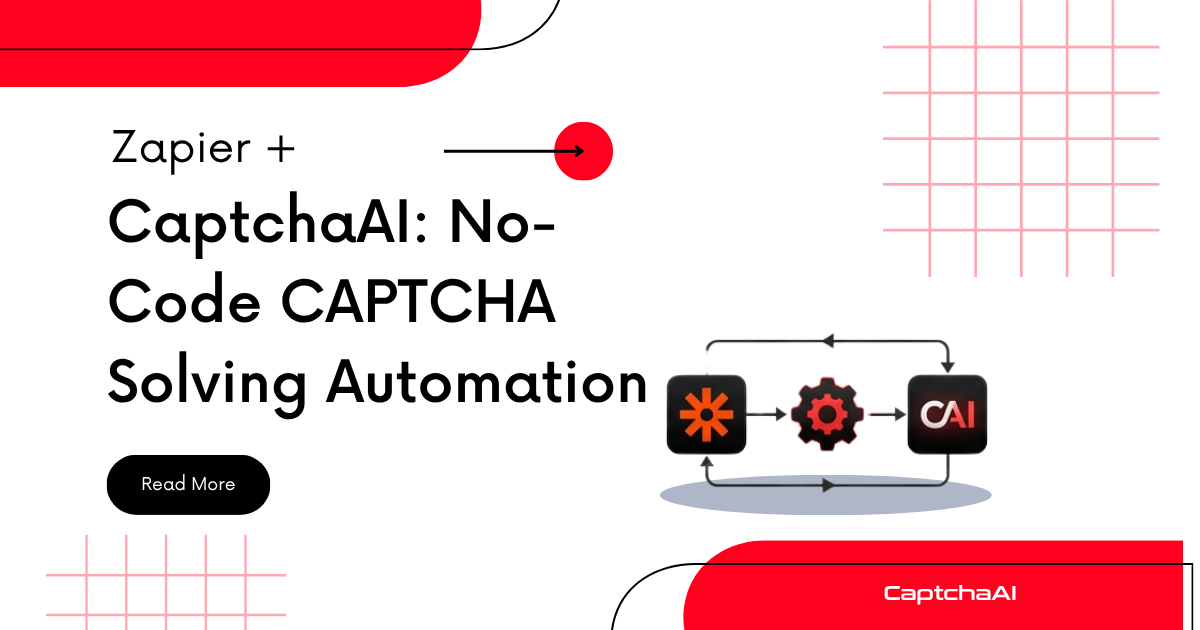
Zapier lets you connect thousands of apps without code. By using Zapier's Webhooks and the CaptchaAI API, you can add CAPTCHA solving to any Zap — automated form submissions, data extraction workflows, or monitoring tasks.
How it works
The integration uses three Zapier actions:
- Webhooks by Zapier (POST) — Submit a CAPTCHA to CaptchaAI
- Delay by Zapier — Wait for the solve to complete
- Webhooks by Zapier (GET) — Retrieve the result
Step 1: Submit the CAPTCHA
Add a Webhooks by Zapier → POST action:
| Field | Value |
|---|---|
| URL | https://ocr.captchaai.com/in.php |
| Payload Type | Form |
| Data | See below |
Data fields:
| Key | Value |
|---|---|
key |
Your CaptchaAI API key |
method |
userrecaptcha |
googlekey |
The site's reCAPTCHA sitekey |
pageurl |
The URL of the page with the CAPTCHA |
json |
1 |
The response contains:
{
  "status": 1,
  "request": "71823456"
}
The request field is your task ID.
Step 2: Wait for the solve
Add a Delay by Zapier action:
| Field | Value |
|---|---|
| Delay For | 30 |
| Delay Unit | seconds |
30 seconds works for most reCAPTCHA v2 solves. For image CAPTCHAs, reduce to 10 seconds.
Step 3: Retrieve the result
Add a Webhooks by Zapier → GET action:
| Field | Value |
|---|---|
| URL | https://ocr.captchaai.com/res.php |
| Query String Params | See below |
Query parameters:
| Key | Value |
|---|---|
key |
Your CaptchaAI API key |
action |
get |
id |
The task ID from Step 1 (use {{steps.1.request}}) |
json |
1 |
The response contains:
{
  "status": 1,
  "request": "03AGdBq26ZfPxL..."
}
The request field is the solved CAPTCHA token.
Step 4: Use the token
Pass the token to the next step in your Zap. For example, a Webhooks by Zapier → POST that submits a form with the CAPTCHA response:
| Field | Value |
|---|---|
| URL | https://target-site.com/submit-form |
| Payload Type | Form |
| Data | Your form fields + g-recaptcha-response = token from Step 3 |
Complete Zap structure
Trigger: [Your trigger — schedule, email, spreadsheet row, etc.]
    ↓
Action 1: Webhooks POST → in.php (submit CAPTCHA)
    ↓
Action 2: Delay → 30 seconds
    ↓
Action 3: Webhooks GET → res.php (get result)
    ↓
Action 4: Webhooks POST → target site (submit form with token)
Handling "not ready" responses
If the CAPTCHA isn't solved after 30 seconds, Step 3 returns:
{
  "status": 0,
  "request": "CAPCHA_NOT_READY"
}
Add a Filter after Step 3:
- Only continue if
requestdoes not containNOT_READY
Then add a Paths step to handle the "not ready" case with an additional delay and retry.
Image CAPTCHA with Zapier
For image CAPTCHAs, change the submit step:
| Key | Value |
|---|---|
method |
base64 |
body |
Base64-encoded image string |
The result contains the text from the image instead of a token.
Checking your balance
Add a standalone Zap to monitor your balance:
Webhooks by Zapier → GET:
| Field | Value |
|---|---|
| URL | https://ocr.captchaai.com/res.php |
| Query String Params | key=YOUR_KEY&action=getbalance&json=1 |
Connect the result to a Gmail or Slack action to get notified when balance is low.
Limitations
| Limitation | Workaround |
|---|---|
| Fixed delay (can't poll dynamically) | Set delay to 30-45 seconds for most CAPTCHA types |
| No loop/retry in Zapier | Use Paths to add a second poll attempt |
| Rate limits on Zapier Webhooks | Stay within your Zapier plan's task limits |
| CAPTCHA tokens expire (~120s) | Minimize steps between retrieval and usage |
FAQ
Can I solve Cloudflare Turnstile with Zapier?
Yes. Change method to turnstile and use sitekey instead of googlekey in the submit step.
Is this reliable for production?
Zapier works well for low-to-medium volume (< 100 solves/day). For higher volume, consider a code-based integration or use n8n which supports loops natively.
How do I find the sitekey?
Open the target page, right-click the CAPTCHA, select "Inspect," and look for the data-sitekey attribute. See Browser Console CAPTCHA Detection.
Add CAPTCHA solving to your Zapier workflows
Get your API key at captchaai.com.
Related guides
Full Working Code
Complete runnable examples for this article in Python, Node.js, PHP, Go, Java, C#, Ruby, Rust, Kotlin & Bash.
View on GitHub →

Discussions (0)
Join the conversation
Sign in to share your opinion.
Sign InNo comments yet.